PURPOSE
The purpose of Processes is to facilitate the functioning of all the other modules in order to achieve the business targets and achieve the targets of the Business KPIs.
ENTERPRISE DEFINITION
Processes is an Independent tool, and requires no additional enterprise definition.
CAPTURE
Navigation:
Data Capture >> Productivity Improvement >> Processes
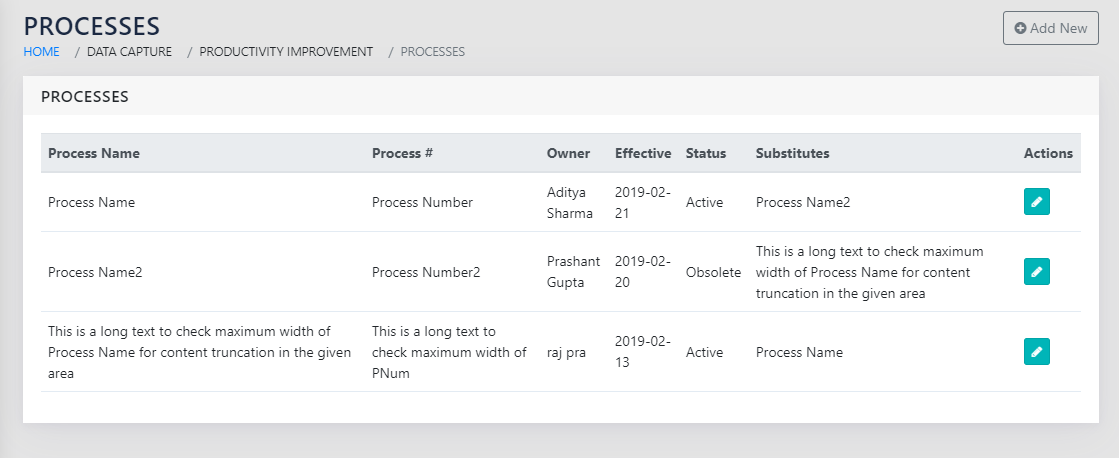
Figure 54: List of Processes shows the list of all processes that exist in the system. On clicking the icon or on adding a new process, a page shown in Figure 55: Add a New Process is presented to the user.
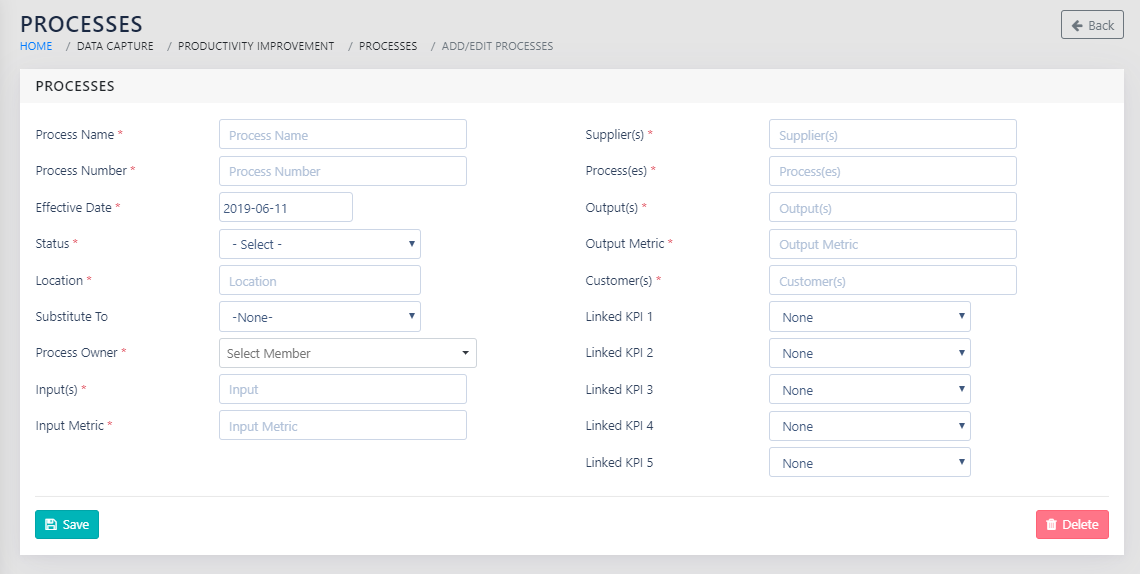
To add a new process, the following fields are to be entered as shown in Figure 55: Add a New Process
- Process Name- Free Text – Enter the name of the process
- Process Number- Free Text- Identification or Process Number
- Effective Date- Date- Enter the date from which the process is to be effective
- Status- Dropdown- options Active/ Obsolete/ Under Development/ Feedback required/ Under Pilot
- Location- Free Text – Enter Location of the process. This can be a physical Location, or a hyperlink
- Substitute to- Dropdown- from existing processes – If the current process is to be a substitute for an existing process, select the name of of the existing process from the dropdown
- Process Owner- Employee Name – The employee who owns the process. This may be linked to the employees IDP.
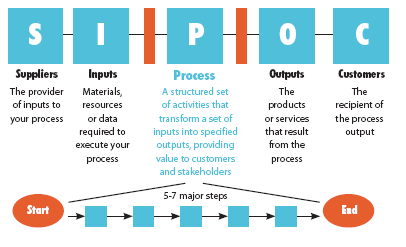
- Input- Free Text – See Figure 53: Understanding Processes and SIPOC
- Input Metric- Free Text– See Figure 53: Understanding Processes and SIPOC
- Supplier- Free Text– See Figure 53: Understanding Processes and SIPOC
- Process- Free Text– See Figure 53: Understanding Processes and SIPOC
- Output- Free Text– See Figure 53: Understanding Processes and SIPOC
- Output Metric- Free Text– See Figure 53: Understanding Processes and SIPOC
- Customer- Free Text– See Figure 53: Understanding Processes and SIPOC
- Linked KPI 1-5 – Upto business KPI’s can be entered using these. These are then pivoted KPI wise as shown in Figure 42: Processes Linked to KPIs.
REPORTS
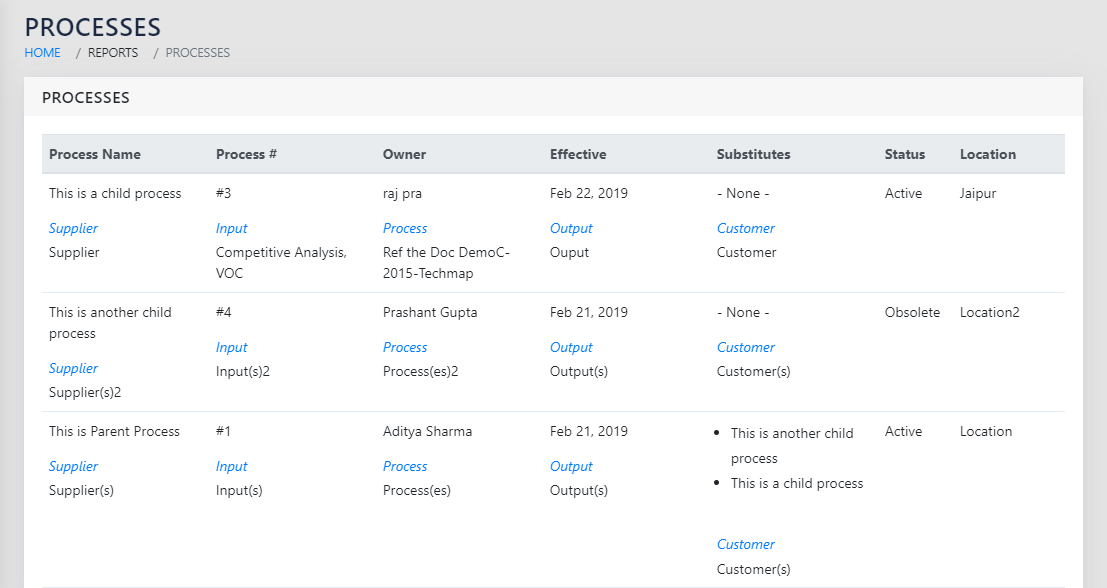
The processes report as shown in Figure 56: Processes Report shows the process details with its SIPOC flow.
Also see Figure 42: Processes Linked to KPIs to view the processes linked to KPIs.
OTHER LINKS
Notional roll up to IDP.