PURPOSE
The purpose of Knowledge maps and gaps module is to identify pieces of documented organisation knowledge items that exist or are needed by the enterprise.
ENTERPRISE DEFINITION
Navigation:
Enterprise Definition >> Capabilities >> Knowledge Framework
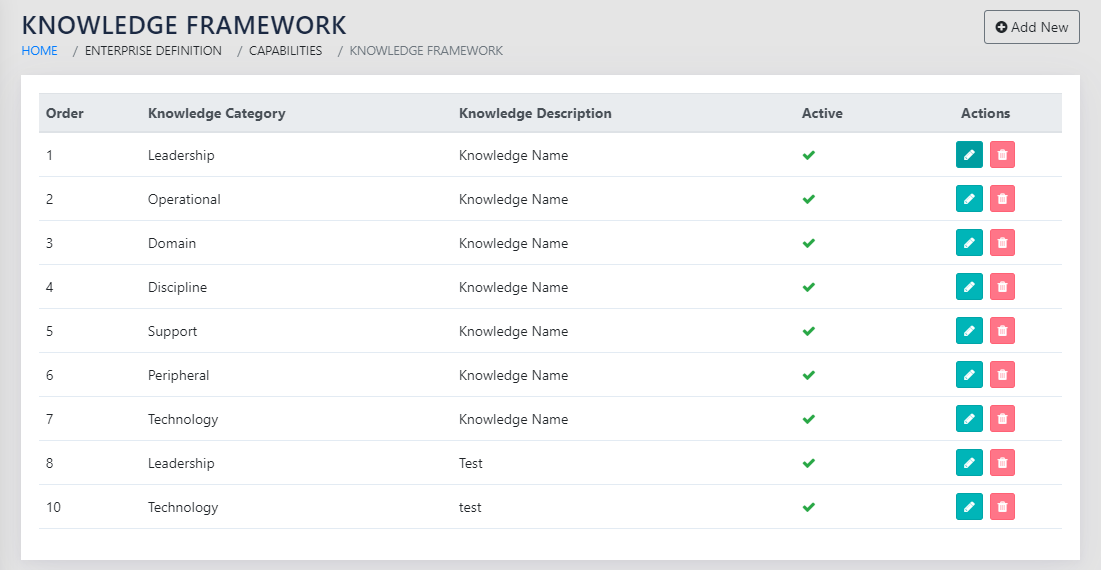
The Knowledge Framework contains a list of documented knowledge pieces in the organisation as shown in Figure 57: List of Knowledge Pieces in the Framework. The Knowledge pieces are categorised as Leadership, Operational, Domain, Discipline, Support and Peripheral.
The framework also warns the user when the granularity is too large, i.e. when the number of Knowledge items is more than 30
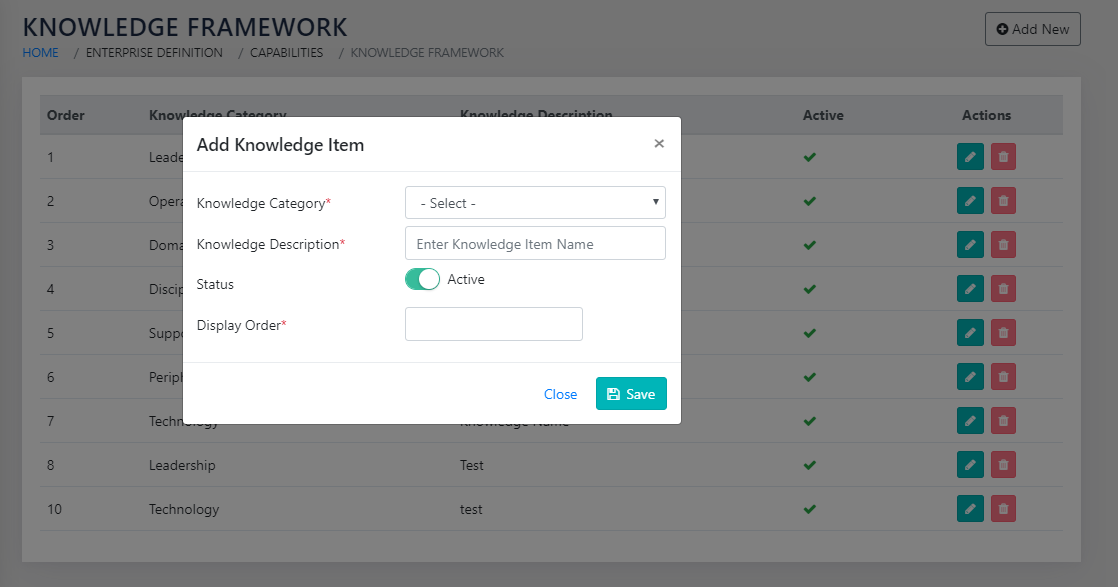
On clicking the icon or clicking the Add new button, the page as shown in Figure 58: Add a piece of Knowledge in the Framework is presented to the user. The user selects the category from then dropdown and types in the name of the Knowledge Item. The Sort ID determines the order in which the item appears in the list.
CAPTURE
Navigation:
Data Capture >> Innovation Capital >> Knowledge
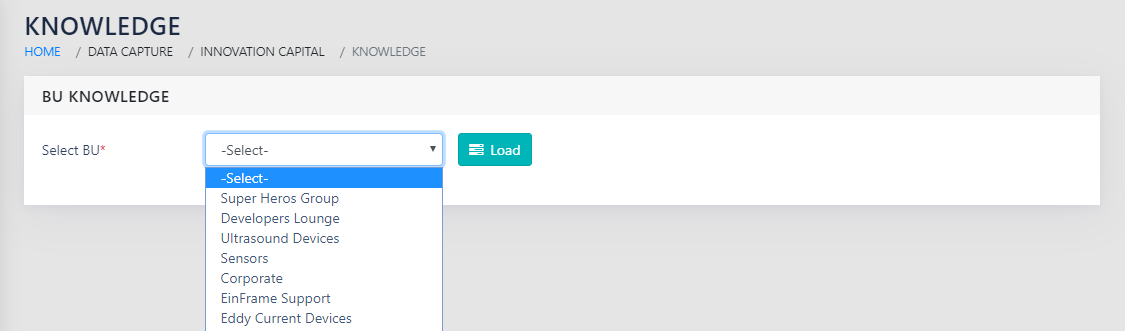
On landing on the page shown in Figure 59: Select BU to update Knowledge Status and Needs, you will get a dropdown for all active Business Units. You need to select the Business Unit for which the Knowledge needs require to be captured.
On selecting enterprise, the application rolls up the data for all active Business Units.
On clicking Load , you land on a page as shown in Figure 60: Update Knowledge Status. There are five parts to consider in the page.
- The leftmost column is the list of knowledge pieces in the system with categorisation.
- The next logical section, to the right of (a) is the the number of the individual pieces of Knowledge in the organisation at each level. This can be from among the five levels, viz.
1-Emerging 2-Evolving 3-Mature 4-Patented 5-Trade Secret - The right most column is used for remarks, if any, related to the piece of Knowledge.
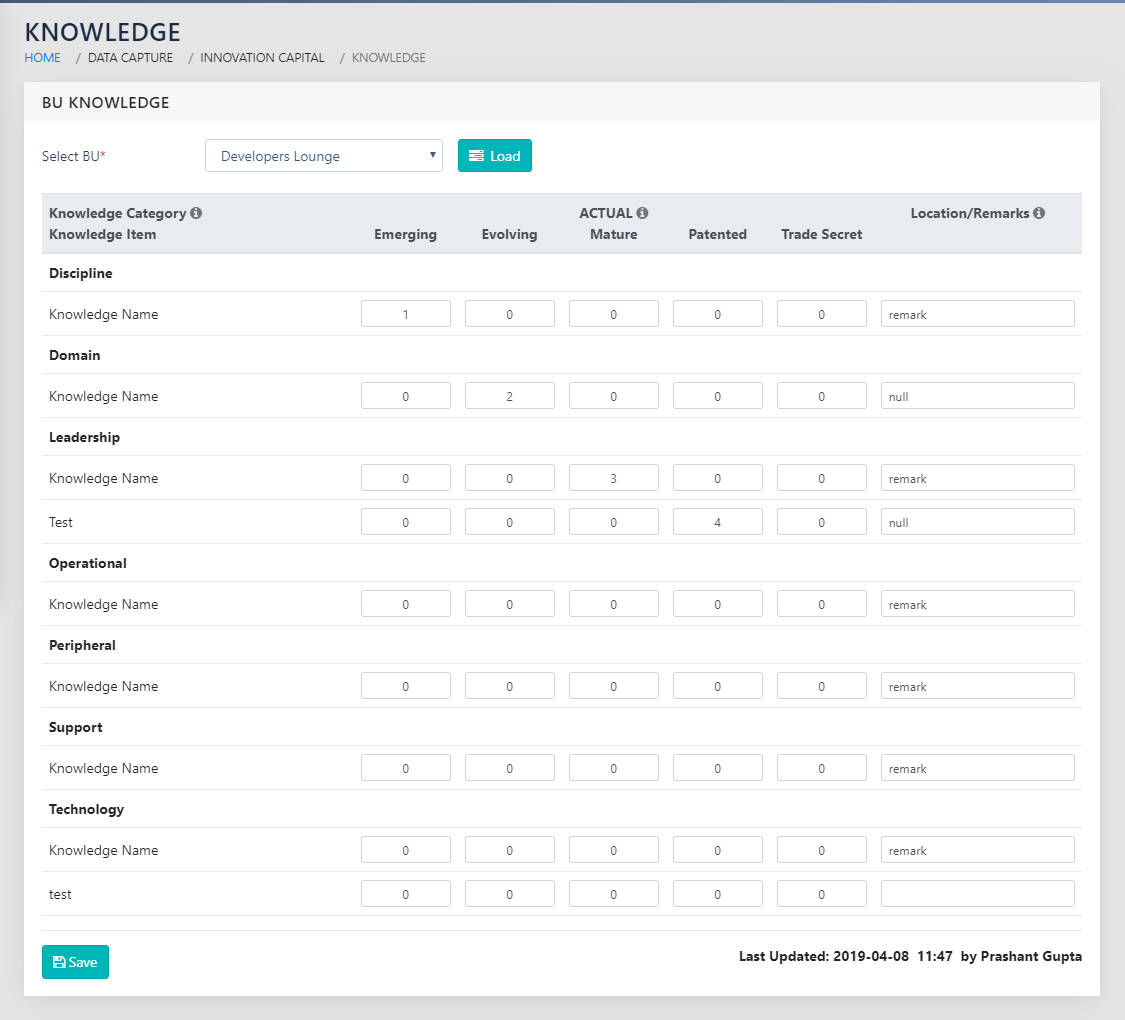
The bottom right of the report ( Last Updated: 2019-04-08 11:47 ) lets the user know when the data was last updated and by whom.
REPORTS
Navigation:
Reports >> Knowledge Maps & Gaps
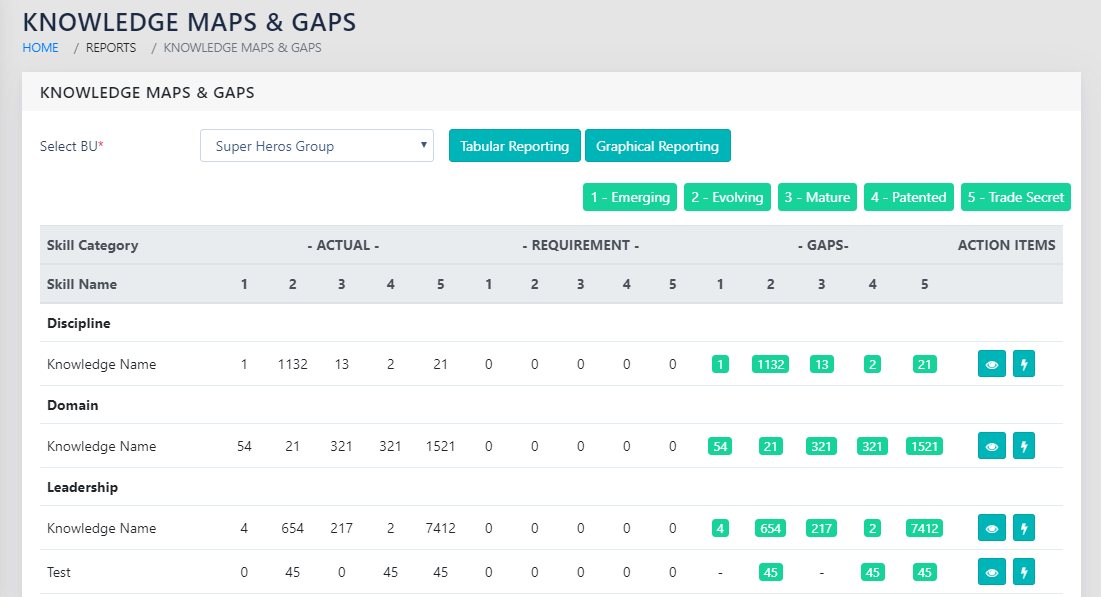
On landing on the page shown in Figure 61: BU Level and Enterprise level Knowledge Tabular Report, you can select either any of the active Business units or the Enterprise.
On selecting a particular Business Unit, you can choose to show either a tabular or a graphical report.
The requirements for Knowledge are derived using the data entered in projects. These are an aggregate from all projects that have passed the Start Gate but have not crossed the End Gate.
TABULAR REPORT
The tabular Report, as shown in Figure 61: BU Level and Enterprise level Knowledge Tabular Report, shows the data entered in a table at each level for each Knowledge item. This also calculates if there are gaps or excesses with respect to an individual knowledge item. The same is colour coded in Red for Deficit, and Green for excess.
On the right side of the page, you can choose to enter an action item related to the specific piece of Knowledge. This is enabled using the icon to add action items. The icon shows the remarks entered against the individual line item
The consolidated report of all action items, including the ones entered here, can be seen in Action Items Reports.
GRAPHICAL REPORTS
On clicking the button, the user sees the page as shown in Figure 62: BU Level and Enterprise level Knowledge Graphical Report. The filled green circles represent positive numbers whereas the blank circles represent negative numbers/gaps.
The Graphical report is smart enough to select the most appropriate scaling factor based on the spread of data in the report.
- All the bubbles are sized in proportion to the corresponding value’s ratio to the largest value in the report.
- The diameter of the bubble is proportional to the ratio of the values, if the ratio of the minimum and the maximum absolute value is less than 20. This is to highlight smaller differences. If the ratio of the minimum and maximum value is greater than 20, the area of the bubble is proportional to the values. This makes both the smallest and the largest values clearly visible on the same scale.
This is indicated on the left of the report, along with the legend for scaling.

SPECIAL FEATURES
The framework also warns the user when the granularity is too large, i.e. when the number of Knowledge items is more than 30.
ROLLS UP TO
Roadmap
OTHER LINKS
Action Items