Enterprise Reports
The Enterprise reports will export various enterprise items.
Enterprise Definition
The Enterprise Definition Menus houses the options that are foundational in nature and must be populated in order to enable the modules to operate. The individual specific pieces of enterprise definition are detailed along with their respective modules. This section details the pieces of Enterprise definition that are foundational for the entire web application.
Add Business Unit
The application is architectured such that there are multiple Business Units within an Enterprise. Each Business Unit has a BU Head and a Deputy Head. Besides, each BU has employees.
Navigation:
Enterprise Definition >> Internal >> Business Units
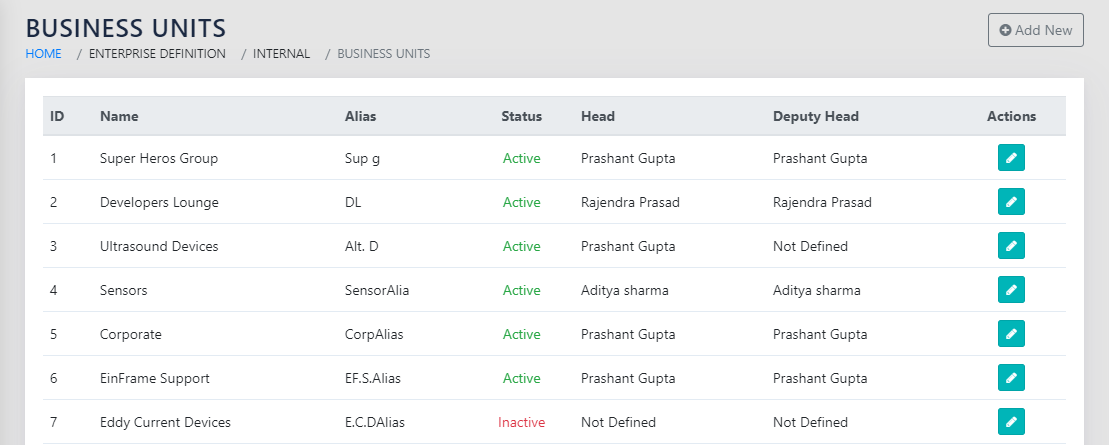
Figure 12: List of BUs Shows the list of Business Units already added in the Enterprise. Each row of the table shows the BU Name, BU Alias (For use in space constrained Graphical Reports), Status (Active/Inactive), The BU Head and Deputy Head, and an icon to Edit the details (Refer Icons and Symbols). Clicking the Edit Icon brings up a screen identical to Figure 13: Add Business Units but with the details pre filled.
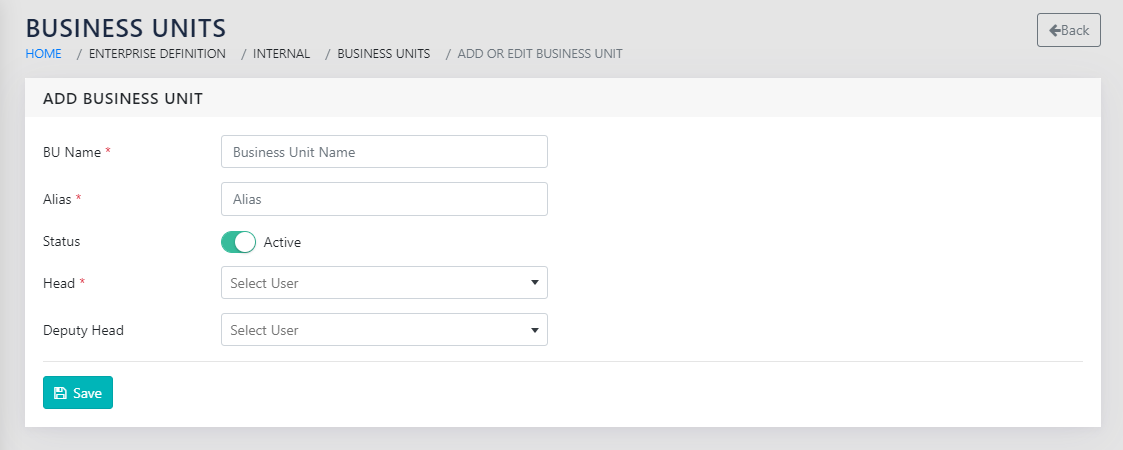
To add a new business unit, Click on the “Add New” button. The screen as shown in Figure 13: Add Business Units appears. The Names of the BU Head and Deputy Head can either be added from the existing employee Database, or typed in directly. Typing in a new name will add an employee on the fly and assign them to the Business Unit.
Add Employee Grades
Navigation:
Enterprice Definition >> Internal >> Employee Grades
All the possible grades of employees that a BU has are listed in the table shown in Figure 14: Employee Grades.
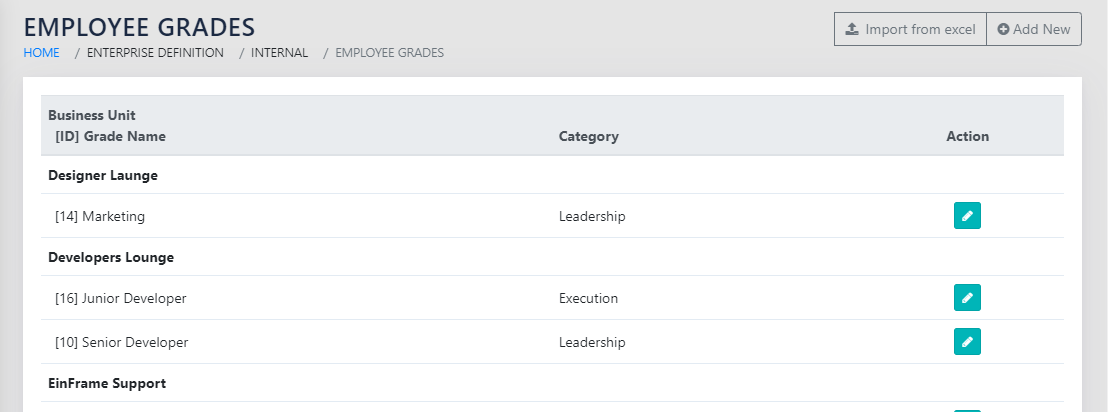
To add a new Employee Grade, click on the Add New button. You will see the page as shown in Figure 15: Add Employee Grades. You have to type in the name of the grade and select the Business unit as defined in Figure 12: List of BUs.
Additionally, you have to select the level of the Grade from the choices of Leadership, Management and Execution. The roles, responsibilities and the soft skills required for the grade should also be entered here. These will be available to the user with that grade in multiple places.
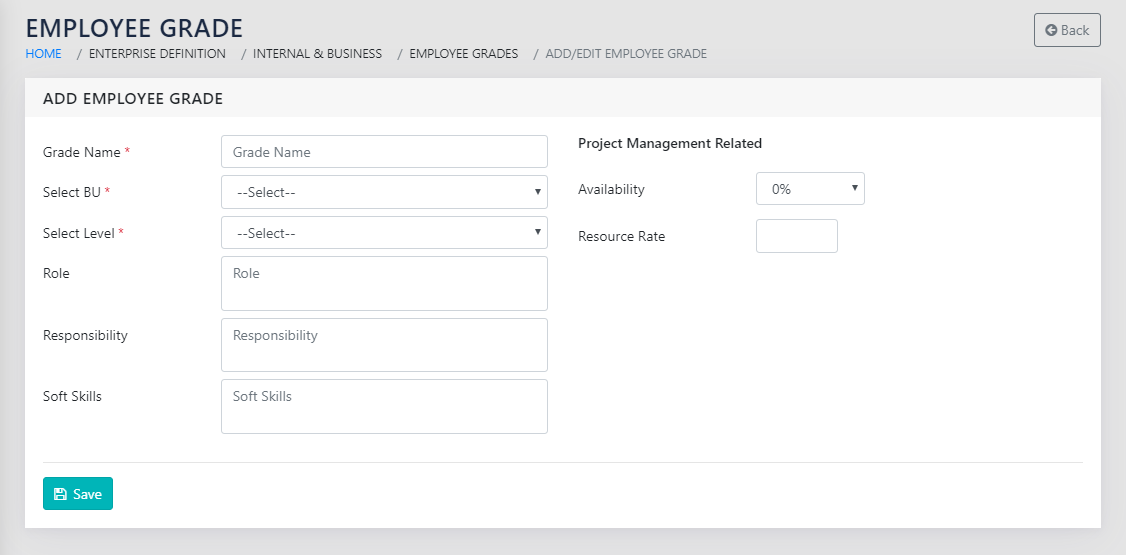
Additionally, the grade master allows the user to enter the percentage involvement in projects and the rate at which effort is to be charged.
- Percent of time available for projects. For e.g. If total available person hours per day is defined as 8 hours, 100% will equate to 8 hours and 25% will equate to 2 person hours. Further, if the involvement of a resource for a task is defined as 50% and the Grade suggests a 25% involvement, the total work against the task is 50% of 25% of 8 hours, i.e. 1 person hour.
- Rate of resource. Define a number against each grade (not necessarily money value) to weigh the project. After adding team and defining % involvement, system will show total cost involved based on this definition. Default rate is 1.
Custom Fields For Employees
Navigation:
Settings & Options >> Customization
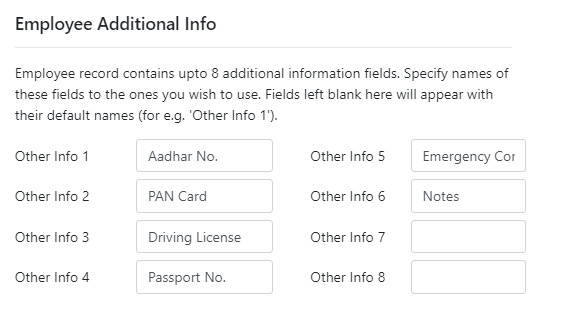
This Page(Figure 16: Custom Fields for Employees) can be used to add additional fields to the Employee Master (Figure 18: Add Employee). The fields are free text and do not have a type validation in the application.