ACTION ITEM
PURPOSE
Action items are the most important support component of the system. This is linked to from most modules in the application. This supports email alerts as well.
These also act as the primary entry point to respond to surveys.
ENTERPRISE DEFINITION
The action item module requires the employee database to be updated. If the email settings in E-Mail Settings and Add Employees are updated, the module triggers an email a day before the action item becomes due.
CAPTURE
Navigation:
Management Reports >> Action Item
From all modules where the icon appears. These are re-referenced from the respective modules. Navigating to the page to add action items directly, as indicated in a, the page shown in Figure 114: Add action Items Directly appears. On clicking the on top bar or the icon, the page shown in Figure 115: Add Action Item Details is seen.
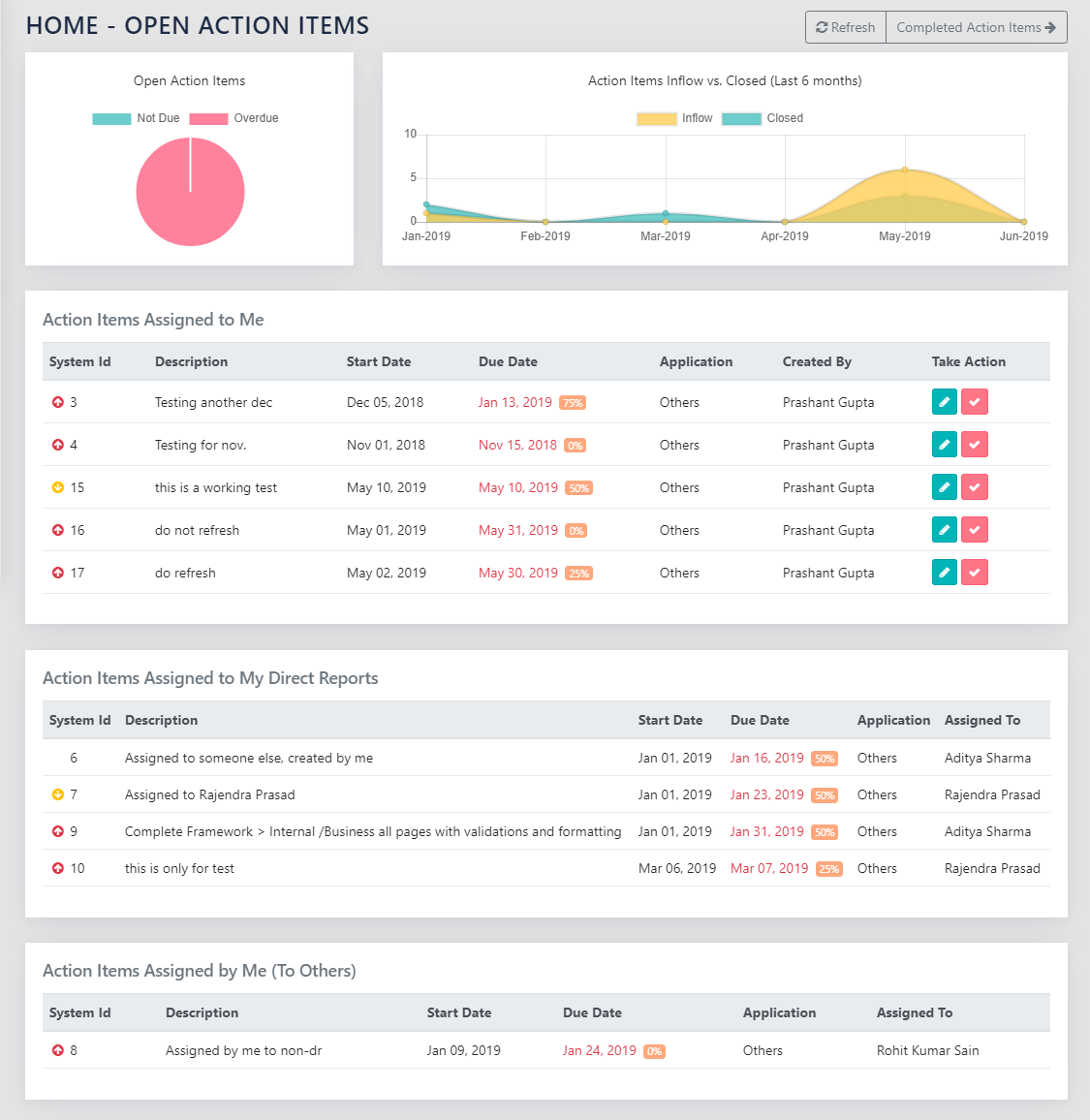
The the page shown in Figure 115: Add Action Item Details has several details.
- Action Description- Free Text- The description of the action item.
- Start Date-Due Date- Dates – Dates for the start and finish of the action.
- Select Owner- Employee search- the person to whom the action item is assigned.
- Priority- Select from High/Medium/Low – option to select Action Item Priority.
- Completion %age- Option to select from 0%, 25%, 50%, 75% or 100%.
- The button to Mark Done changes the state of the action item and moves it to the bottom of the report, under the “completed action items” category.
- Action items Maintain the source of origination internally, automatically.
REPORTS
Navigation:
Management Reports >> Action Items
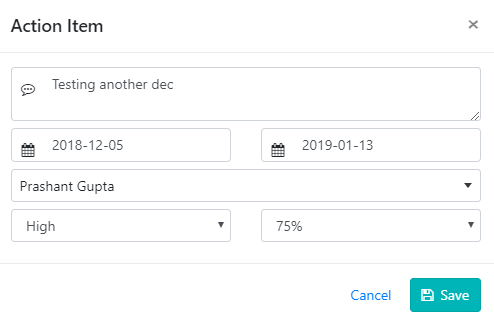
Action Item report has 3 major categories of action items.
- Action items that are “Assigned to me”, as shown in Figure 116: Self and Direct Reports All Action items.
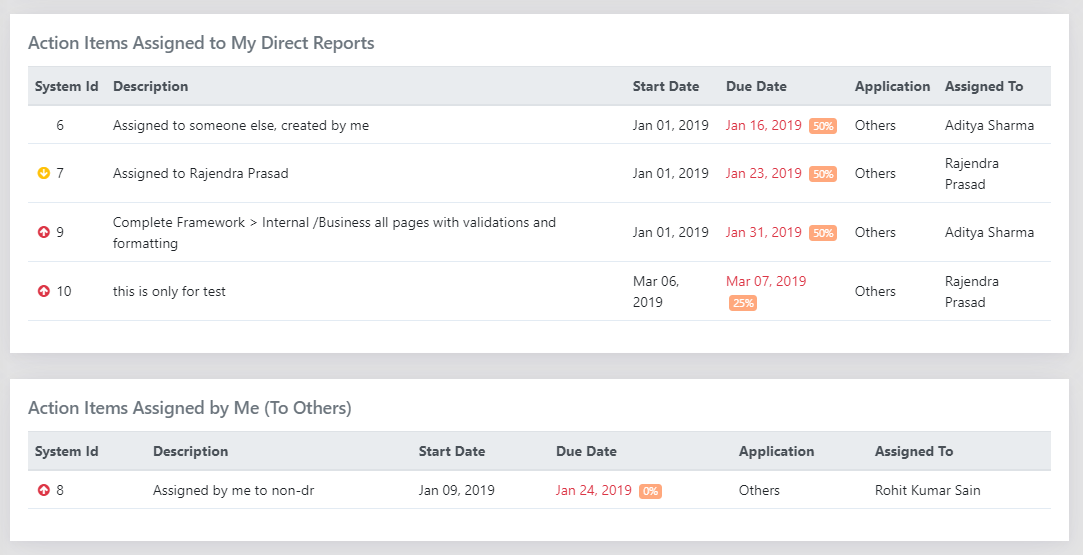
- Action items “Assigned to My Direct Reports” to anyone else, as shown in Figure 117: Action Items assigned by Me; and
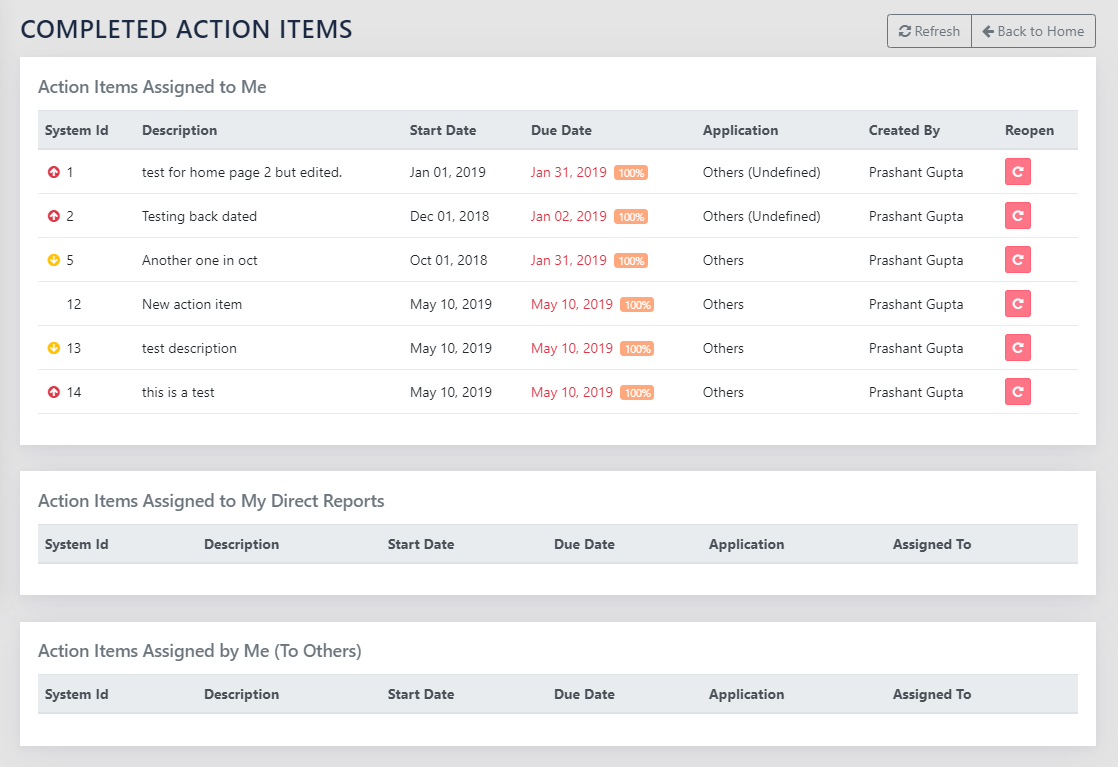
- Completed action items as shown in Figure 117.1: Completed Action Items.
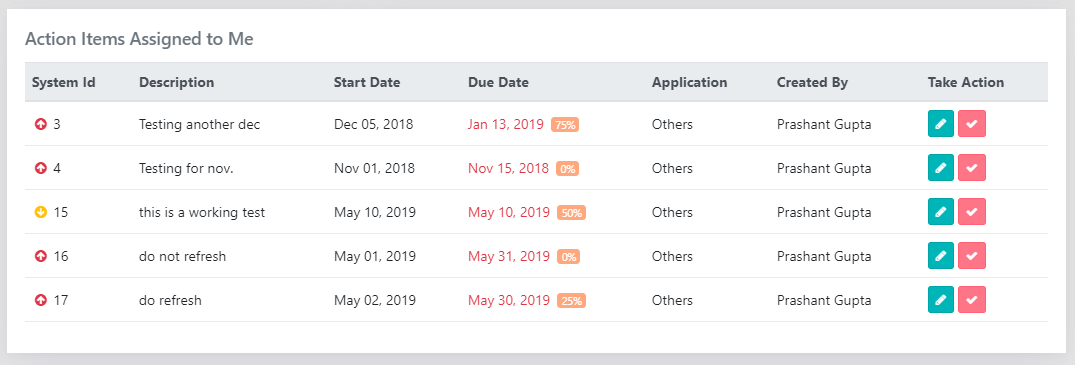
Each of these action items shows
- ID with icon- The action item ID with icons depicting priority
- for High Priority action item
- No icon for medium priority action item
- for Low Priority action item.
- Due Date for completion, along with icons depicting progress
- 0%
- 25%
- 50%
- 75% and
- 100%
- Action description
- Application from where these originated
- Assigned to whom
- An option to edit and update the same via the icon.
Completed action items additionally have a “completed date” information field as well, while doing away with the progress icons.
SPECIAL FEATURES
Trigger Email Alerts a day before the action item is due if E-Mail Settings and the email address in the Add Employees are correctly configured.