PROJECTS
PURPOSE
The purpose of the project Module is to
- Provide the roadmap direction to the Enterprise by successive detailing of all projected endeavours in the form of projects and project needs
- Provide a basic project management functionality to plan for people, information and assets to successfully execute a project; and track the execution through critical milestones or Project gates.
ENTERPRISE DEFINITION
PROJECT CATEGORIES
Navigation:
Enterprise Definition >> Internal >> Project Categories
The Project Categories framework consists of the Types of Development projects that the Organisation would like to define. This is as shown in Figure 149: Project Categories.
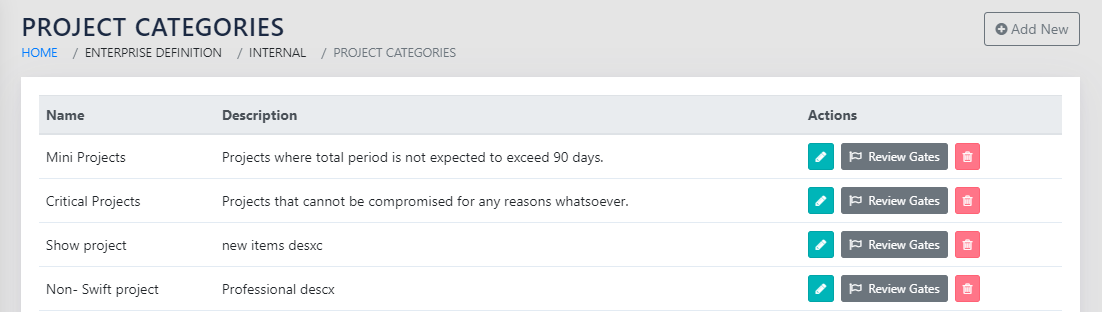
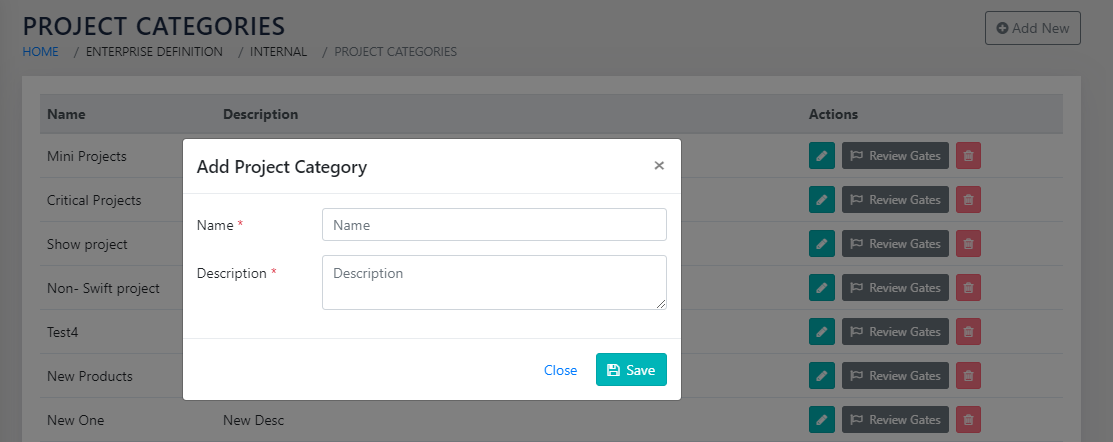
On clicking the Add New button, the user is taken to the screen as shown in Figure 150: Add a new Project Category. The user can specify the name of the category and a brief description of what the project category is about. If the user clisks the icon on the right of an already define Project Category, they can change the Name and the description of Project category using an identical screen as shown in Figure 150: Add a new Project Category.
Each project category has a unique list of Project Gates (Milestones), with a fully customizable list of checkpoints for each milestone within each category.
This functionality is accessed for each Project category using the “Checklist” icon circled in RED as shown in Figure 151: Access Gate addition for a Category.

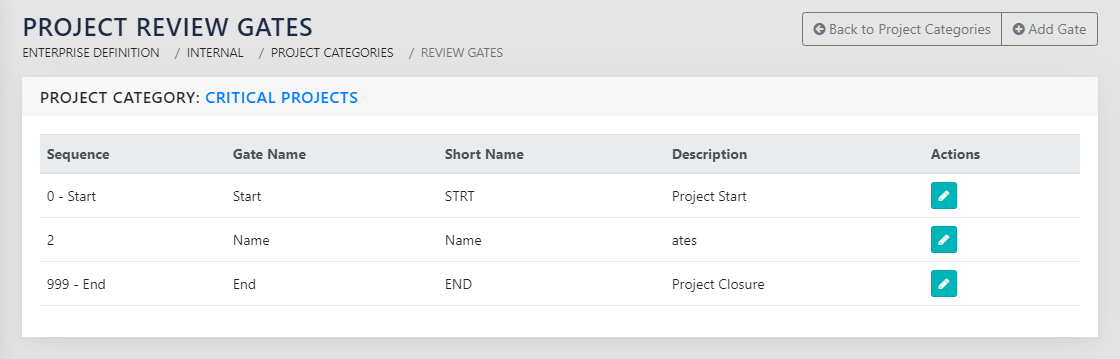
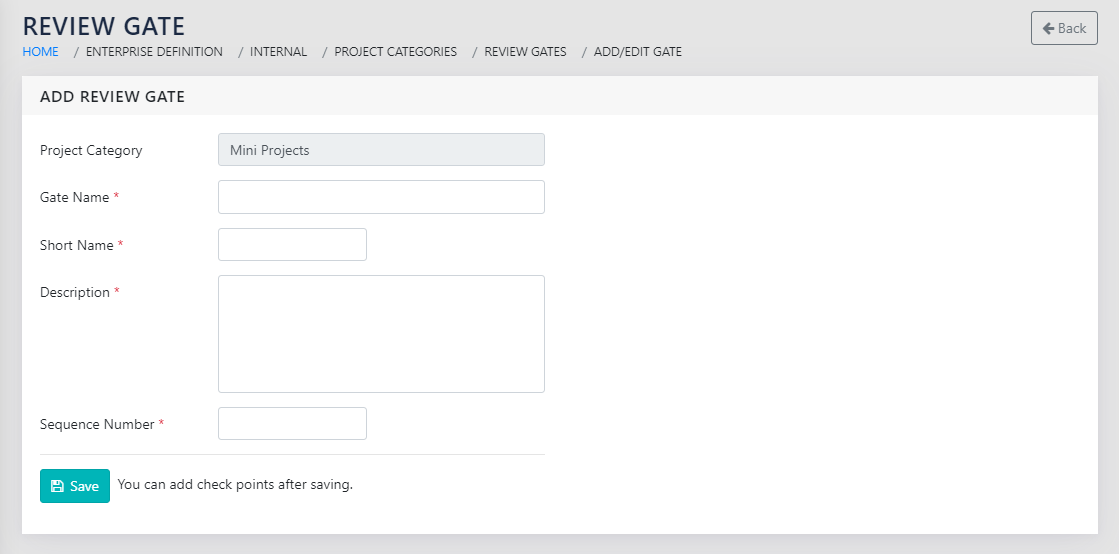
On clicking on the “Checklist Icon”, the user is taken to the screen as shown in Figure 152: List of Gates for a Specified Project Category. On clicking on the Add Gate button, the user is shown the page as shown in Figure 153: Add a new project Gate.
Please note that the Project start and Project End gates are already defined in the system and can not be removed. The user can, however, change the names and the Passing criteria.
On the screen, the user defines the name of the Project Gate and the Gate description. The Sequence number is the sequence of the Gate being defined within a project of the defined category.
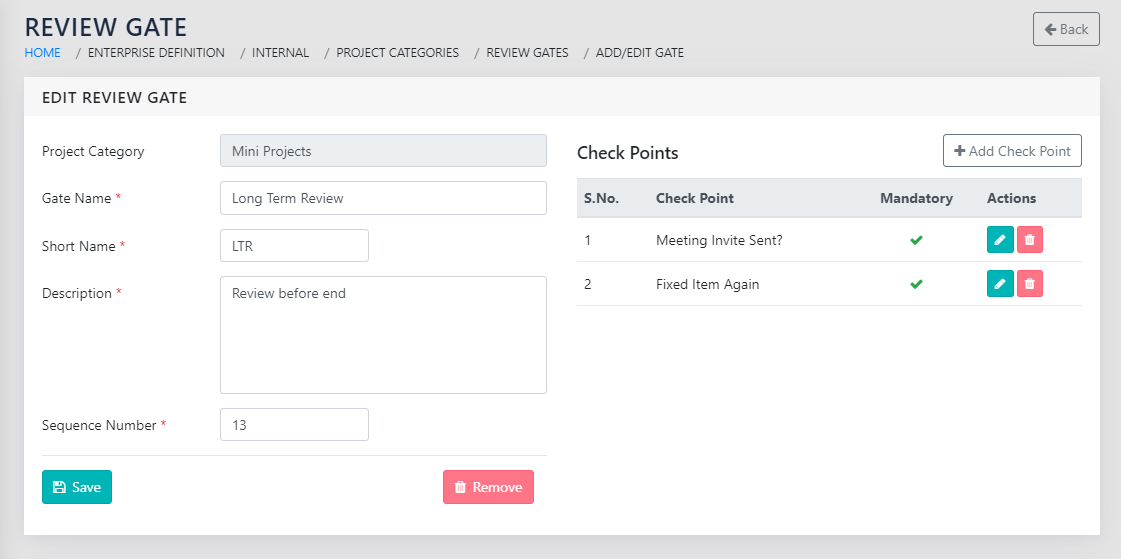
On saving the basic details of a new project gate using the Save button, the user can now add the checkpoints for each gate. These checkpoints will be used for Gate reviews as discussed in the Project Execution- Gate Reviews section.
To add checkpoints to each gate, the user clicks the Add Check Point on the screen shown in Figure 154: Add Checkpoints to Gate within a Project Category.
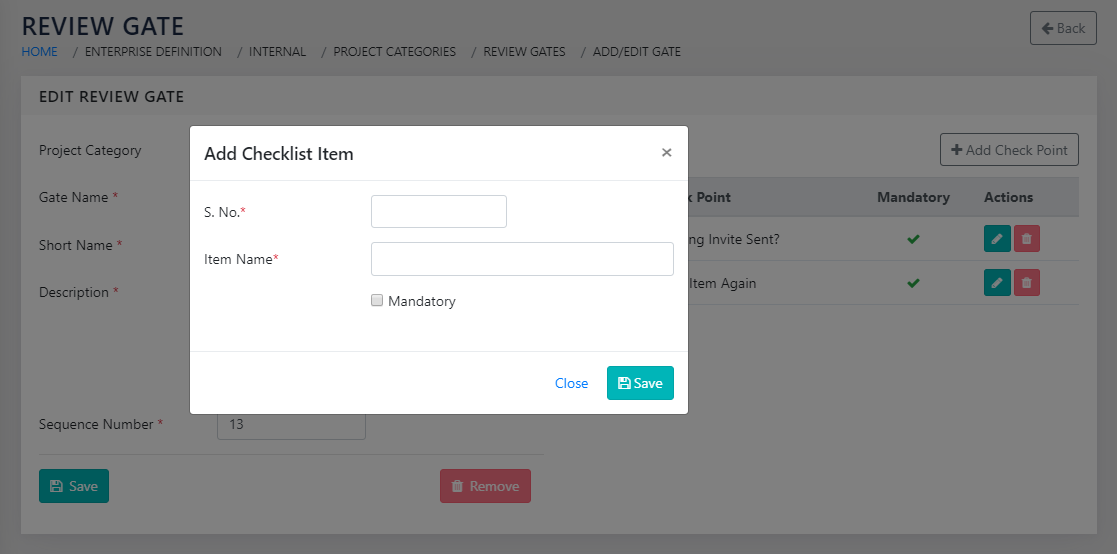
The user can then add the checkpoint using the screen shown in Figure 155: Add Checkpoint to the selected Gate
PROJECT GATE OUTCOMES
Navigation:
Enterprise Definition >> Internal >> Project Gate Outcomes
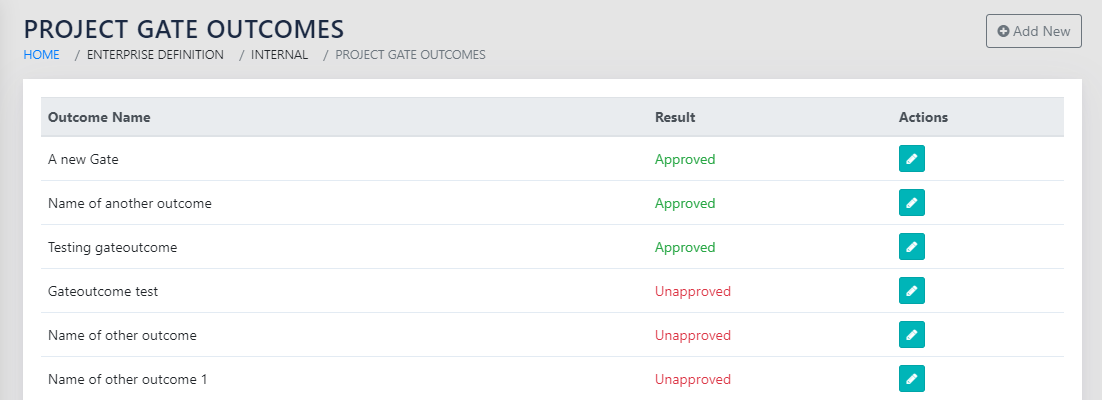
Any project gate review can have multiple Review outcomes that are specific to the Enterprise. These can lead to the project either passing through the Gate or being blocked at the Gate. These outcomes, as defined, are shown as in Figure 156: Project Gate Outcomes.
The user can add additional Gate Review Outcomes using the screen by clicking the Add New button that takes them to the screen shown in Figure 157: Add a Gate Review Outcome
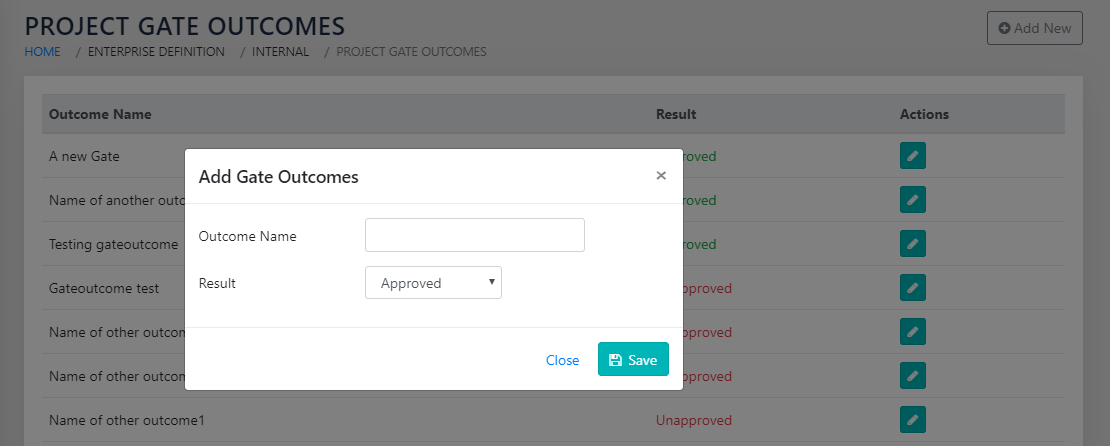
On this screen, the user can define the name and the verdict (Result) of each gate review outcome.
MARKETS
Navigation:
Enterprise Definition >> External >> Markets
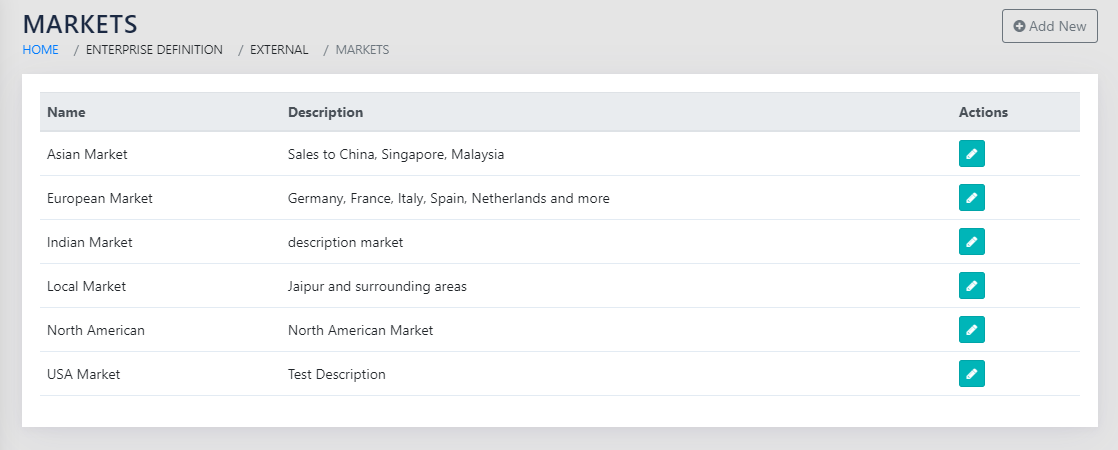
On navigating to this screen shown in Figure 158: Markets, the user sees all potential markets across BUs that the projects can target using their products.
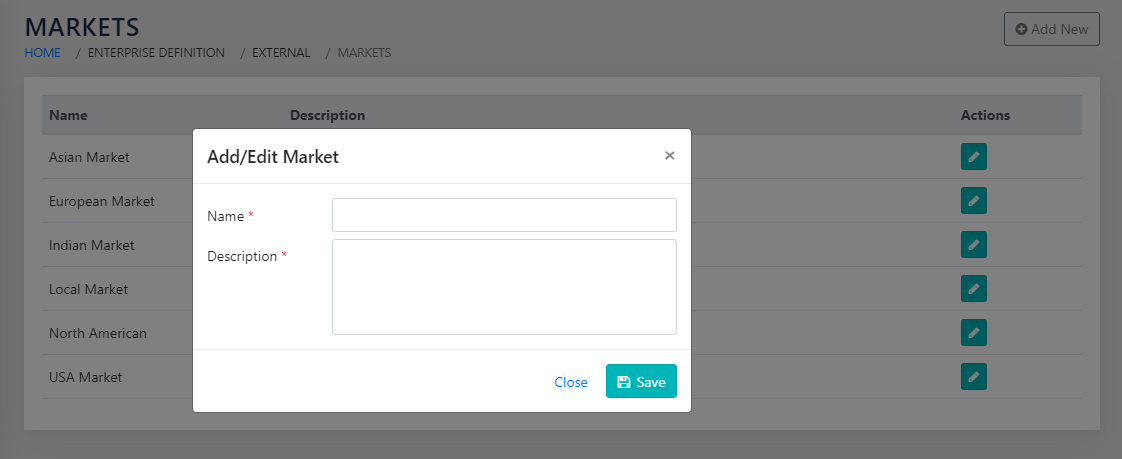
To add a new market, the user clicks the Add New button. On clicking, the user sees the screen as shown in Figure 159: Add a New Market. The User can specify the name and describe the Market being added.
TASK CATEGORIES
Navigation:
Enterprise Definition >> Internal >> Task Categories
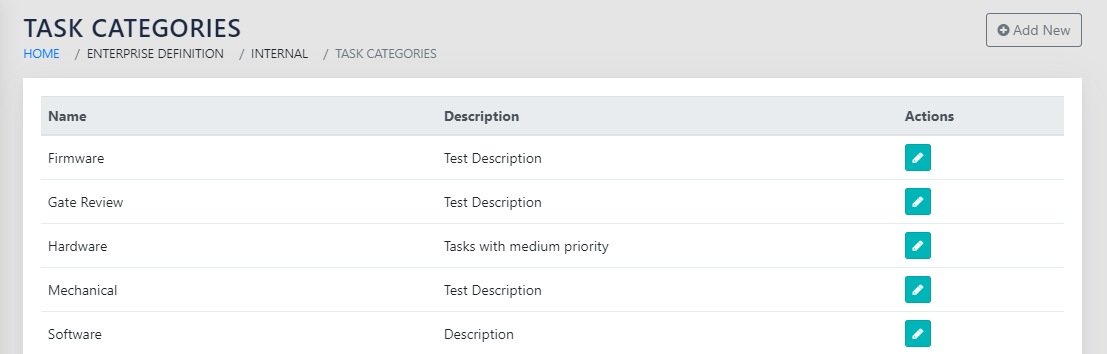
The page shown in Figure 160: Task Categories allows the user to specify the broad categories that the task is categorised in, so that the same can be segregated while scheduling.
TASK TEMPLATES
Navigation:
Enterprise Definition >> Internal >> Task Templates

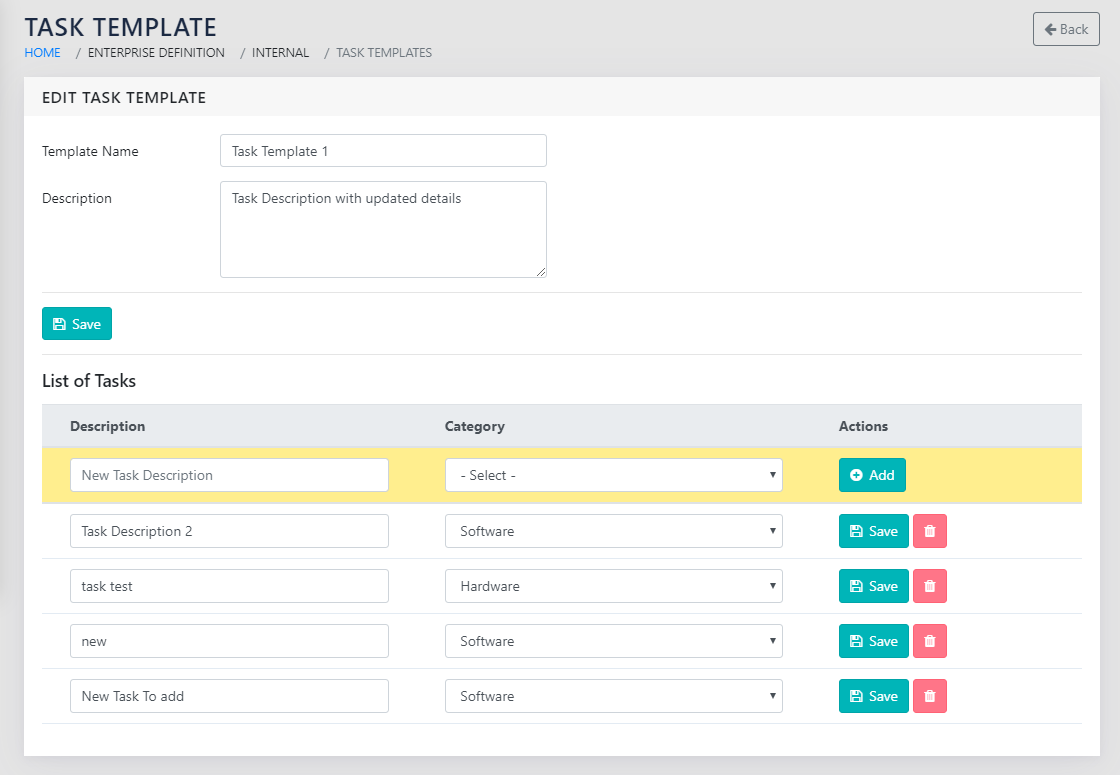
The form shown in Figure 161: Task Templates allows the users to create templates for typical projects, along with their castegories. This speeds up the schedule creation significantly as these templates can be used to prepopulate the schedule.
This is shown in Figure 162: Add/Edit Task Templates.
HOLIDAY CALENDAR
Navigation:
Enterprise Definition >> Internal >> Holiday Calendar
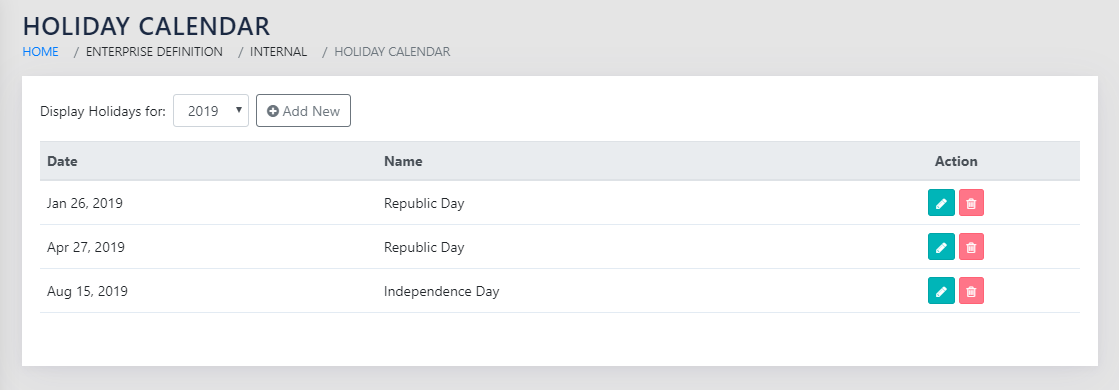
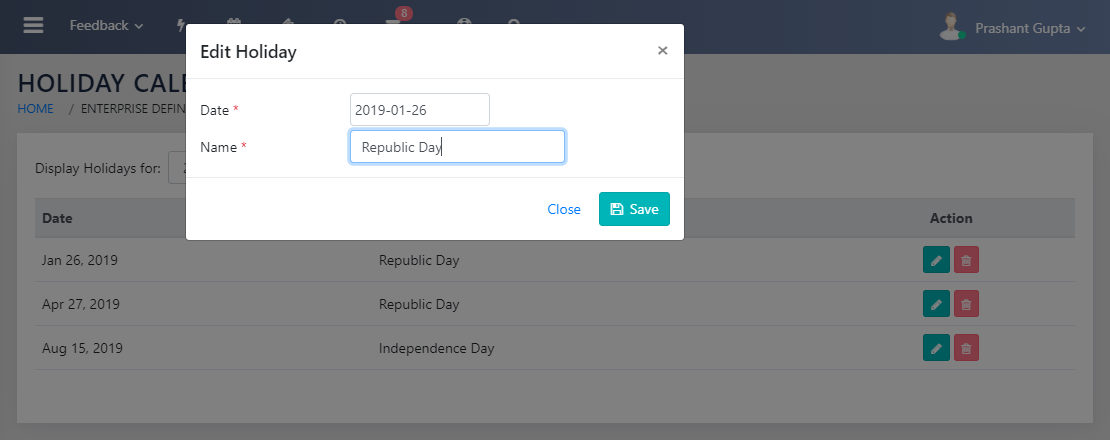
The List of Annual Holidays are listed in this module as shown in Figure 163: List of Holidays. These can be edited and added using the page shown in Figure 164: Add/Edit Holidays.
WEEKLY OFFS
Navigation:
Enterprise Definition >> Internal >> Weekly Offs
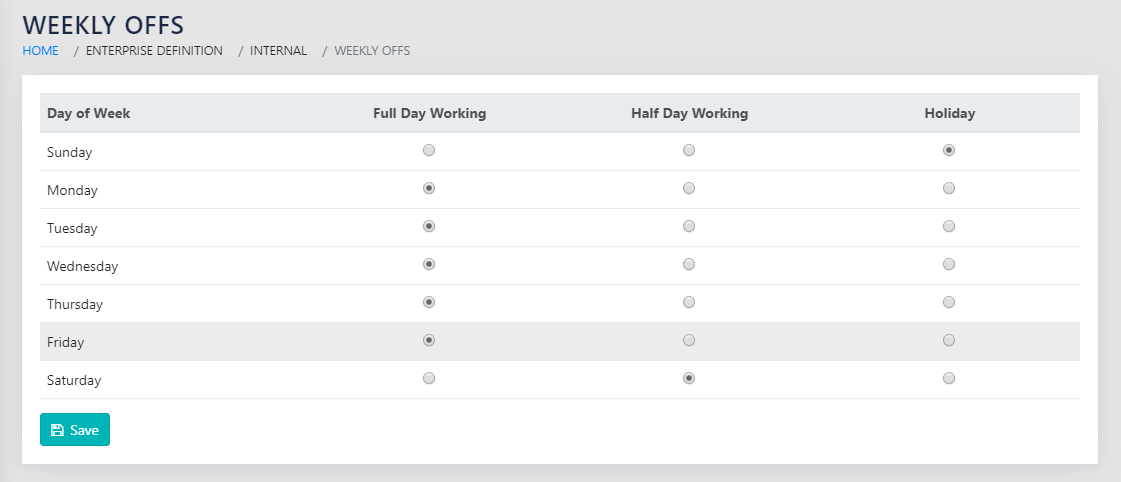
The page shown in Figure 165: Weekly Off calendar allows the user to create an enterprise level calendar with weekly offs and allows half days.
The hours available per day for an employee are also available here.